
Searching for Datasets
The most robust and effective way to discover data on the Data Explorer is through search. You can begin a search from the homepage banner or by selecting Search from the top navigation. Queries entered in these two locations will return results for Datasets only. If you need to search for a specific Team, Topic, or Application, you can search directly on the /teams, /topics, or /applications pages, respectively.
[Image here]
Start with a Keyword
Dataset search functionality is keyword-based and scans all metadata (not just dataset titles) across all datasets in the portal.
Advanced Search Filters
On the /search page, select from a list of advanced filters in the left panel to narrow your search results. Search results will update dynamically as you change filter settings and can be removed just above the search results. To reset the search page to default, click on ‘Clear all filters’ on the right side.
[Image here]
Available filters include:
- Location
- Project
- Team
- Topics
- Tags (less rigid than Topics; can vary)
- Temporal Coverage
- Update Frequency
- Format
- License
- Language
- WRI Data (Yes or no)
- Visibility
Search by Location
If you are trying to narrow down geospatial datasets for a particular geography, you can also filter by location. Expand the ‘Location’ filter from the filter menu to expose a map widget (powered by Mapbox) and complete an autocomplete text search to match data files against geography names or addresses.
[Image here]
To learn how to search by location within a specific dataset, see Search and Filter Data Files by Location.
Viewing Search Results
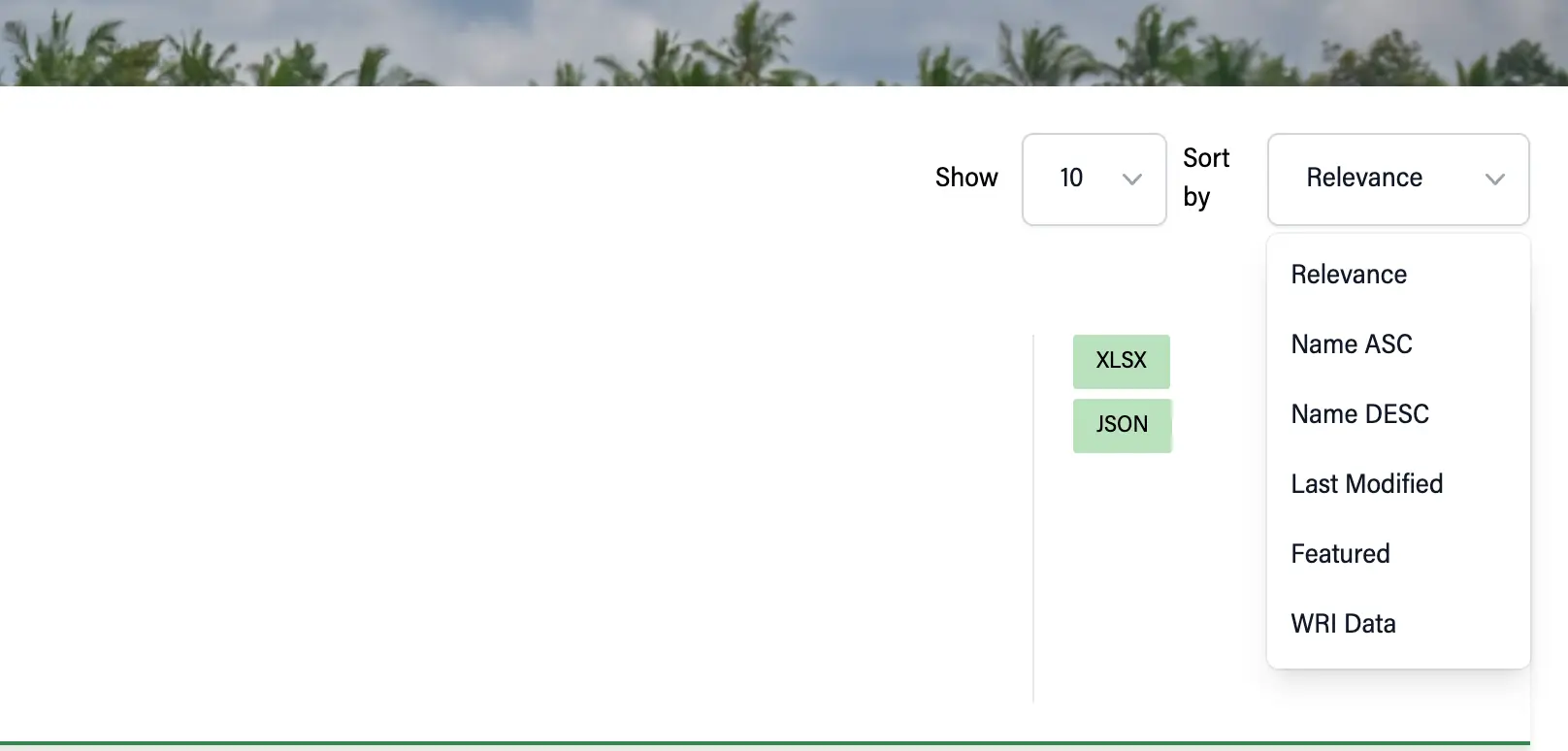
Only some metadata will appear on search results cards. Clicking on a result will direct you to a Dataset Detail Page, where you will find more metadata, visualization previews (if applicable), and options to access the data. You can also sort results or change how many results are displayed.
[Image here]
Back to Filtered Results
After clicking a dataset, if you want to return to filtered search results from your last query, click ‘Go Back' or use the back button in your browser.
Clicking on the ‘Datasets’ breadcrumb in the sub-navigation will take you back to the /search page but without any queries or filters.
Sharing Searches with Other Users
As you refine your search on the /search page, the page’s URL will also continue to update. This makes it possible to copy the URL and share the search results and any filters with other users.